

The weekly stock projection
The projection is one row per Sales SKU and one column per week. Each cell is the projected end-of-week stock for that SKU.
The controls above the grid
Section titled “The controls above the grid”The toolbar above the grid carries the planning actions. A button with a count appears only when there is something to count:
- Shipment plans — opens the plans that do not have a purchase order yet; see Order Planning.
- New shipment plan — pick or create a plan, then type quantities straight into the grid rows.
- Review proposals — steps through the proposals waiting for a decision.
- Recalculate proposals — refreshes selling rates first, then rebuilds proposals. If the rate succeeds but the proposal step fails, the App keeps the new rate and tells you which step failed.
At the right sit Templates (reusable ordering baskets), Settings (Planning settings) and How it works. On narrower screens they show as icons only.
The grid shows one channel at a time: Amazon (FBA + AWD), Walmart (WFS), or TikTok (FBT). Above the table sit a search on Sales SKU or product and two filter chips:
- Active — on by default. It keeps SKUs that have stock in this channel’s warehouses or a sales rate, plus any SKU in the plan you are editing. Turn it off to see every SKU.
- Has proposal — narrows the grid to the rows carrying a proposal.
Each column header also has its own sort and filter menu. On an account with a few hundred Sales SKUs, these are how you reach the rows that need you rather than scrolling the grid looking for red.
When the channel reports stock or inbound units on seller SKUs that are not linked to a Sales SKU yet, a banner above the grid gives the units and the number of SKUs. Planning cannot use those units until you confirm the link with Map SKUs in Product Catalog.
What goes into a cell
Section titled “What goes into a cell”- What you hold in the channel’s warehouse: FBA for Amazon, WFS for Walmart, or FBT for TikTok.
- For Amazon, the stock in AWD. It is not counted as sellable today: it is added in the week it would reach FBA, after the AWD transfer to sales warehouse time in Planning settings (14 days unless you change it).
- What is inbound, and the week it lands.
- The selling rate drawing it down each week. In the current week, only the days left, today included, are drawn down.
Amazon’s FBA stock includes units in FC processing but leaves out units Amazon is researching and unfulfillable units. If Amazon reports researching or unfulfillable units, or a SKU has more units in FC processing than fulfillable, the FBA & AWD card above the grid shows Inventory issues with a count. The list gives each affected SKU and the time of the Amazon data.
Reading the colours
Section titled “Reading the colours”| Colour | Meaning |
|---|---|
| Normal text | At or above the SKU’s buffer, or no buffer is configured. |
| Amber text | Below the SKU’s buffer. |
| Red text | Below half of the SKU’s buffer. |
| Red background | Projected stock is zero or below. |
These week-cell colours compare projected units with the SKU’s buffer converted to units. They do not use lead time. Lead time is shown separately in the Coverage column, which reports whether current cover reaches the time needed to produce and move a new order plus your buffer.
The Coverage cell uses its own status: red for a lead-time risk, amber for a buffer gap, green when the target is covered, and purple when stock is well above the target — by half the buffer or eight weeks, whichever is more. A darker purple with an outline marks stock a full buffer or sixteen weeks over, whichever is more; its tooltip adds far too much. A SKU with a buffer of 0 never turns purple. Cover counts AWD stock and committed inbound now, whenever they land, so it measures how much stock there is, not when it can sell. A colour is not a shipment status; open the week cell when you need to see which lot changes the balance.
Markers on a cell
Section titled “Markers on a cell”| Marker | What it means |
|---|---|
| A ring around the cell | An inbound lot lands in this week |
| An AWD pill | Units arriving from an AWD to FBA transfer, not from a new inbound lot |
The point of the grid is the shape of the line, not any single number. A row that walks steadily down into red tells you when to act. A row that dips and recovers because a lot lands tells you that you have already acted.
Late and distant lots
Section titled “Late and distant lots”The projection runs for 40 weeks from the current week.
- A committed lot whose expected arrival week has passed, and which has not been received, is not dropped. The App moves it to next week so the projection still counts it, and the row shows an overdue badge with the week it was due. Update the expected arrival date to put it in the real week.
- A committed lot arriving after those 40 weeks is not in the projection. The row shows a beyond 40w badge that lists it.
The columns before the weeks
Section titled “The columns before the weeks”The columns to the left of the weeks are the row’s inputs and its current stock:
| Column | What it is | Editable |
|---|---|---|
| Coverage | Current cover in weeks against the buffer for this SKU and channel, with the status colour described above. The header shows the lead time | Yes — select the cell to edit the buffer; Update edits buffers in bulk |
| Sales/week | The applied selling rate | Select it to see the windows or adjust it. Refresh recalculates rates and proposals, the same run as Recalculate proposals |
| Plan & arrivals | The proposal’s status, or the target and planned quantity once it is in a plan. With an arrival-week filter, what lands in that week | Open the proposal, or + Add to plan |
| FBA, AWD (pool), WFS or FBT | What you hold now in each of the selected channel’s warehouses | No |
Each row is one Sales SKU; there is no product-level total row. The buffer, rate, and order quantity live on each Sales SKU, so each row carries its own decision.
Opening a cell
Section titled “Opening a cell”A cell opens to show how it was arrived at:
- Expected — the projected end-of-week stock.
- Buffer level — the cover you asked to hold, for comparison.
- Added this week — what lands in that week, named: the App shipment, and the inbound lot behind it with its identifier and the date it is expected.
The panel says how to go further itself — click the cell to open Inbound Pipeline — so a number in the grid is traceable to a tracked lot rather than an assumption.
Not every Amazon inbound is treated the same way:
- An open shipment sent directly to FBA counts in the FBA stock as soon as Amazon reports it — the units it still expects to receive — before you match it to anything.
- A shipment to AWD that is not matched to an App lot is shown in the cell as not matched and is left out of the projection until you match it in the Inbound Pipeline.
- Walmart and TikTok inbound reported by the marketplace counts, unless an App shipment for the same SKU and channel is already on its way. Then the marketplace record is not added, and the App shipment counts.
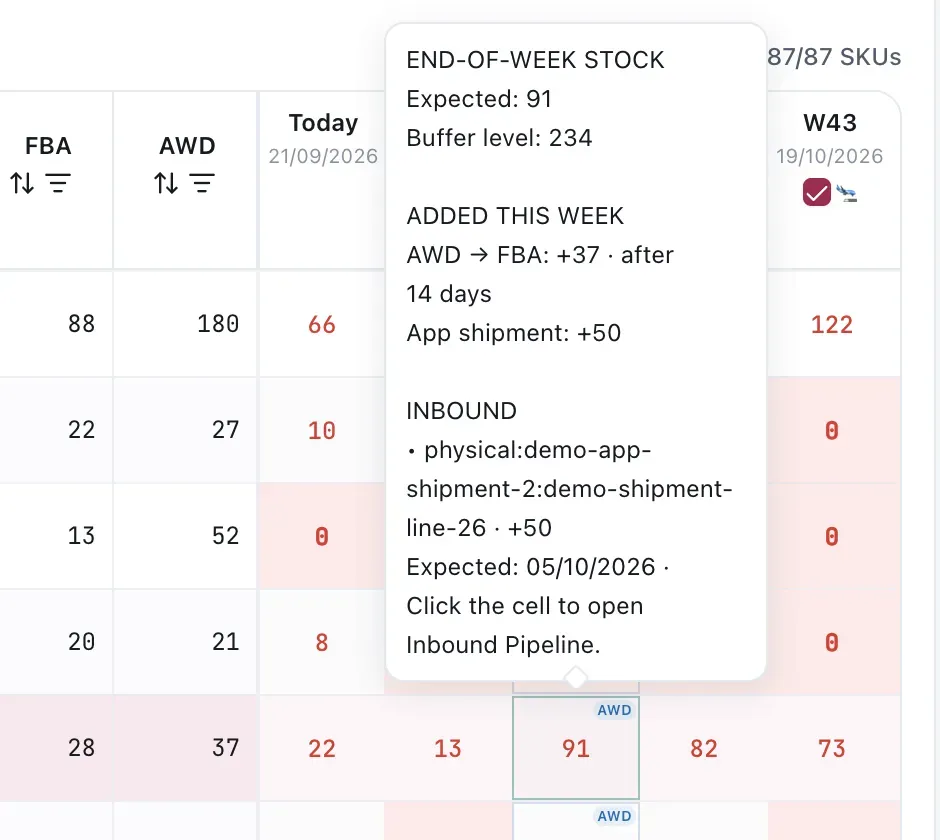
The weekly balance stays traceable to the transfer or inbound lot that changes it.
What the projection is not
Section titled “What the projection is not”It is not a forecast of demand. It projects the consequences of the currently applied rate, the stock baseline, and committed inbound. If you know demand is about to change — a promotion, a seasonal peak, or a listing going live — adjust the rate before recalculating proposals. You do not need to press Refresh separately: Recalculate proposals refreshes rates as part of the same run.
VendlenPrivacy PolicyTerms of ServiceContact
© 2026 HELODA PTE. LTD. Not affiliated with or endorsed by Amazon.