

Search terms workspace
Search terms are what shoppers actually typed. Keywords are what you bid on. The gap between the two is where most of the money is won or lost, and this workspace is where you look at it. Each row puts the search term beside the Keyword that matched it and that keyword’s match type, in the campaign and ad group that paid for it.
Quick filters
Section titled “Quick filters”The account has far more search terms than anyone reads. Filters are how you get from all of them to the handful worth a decision — and once you have a good one, you save it.
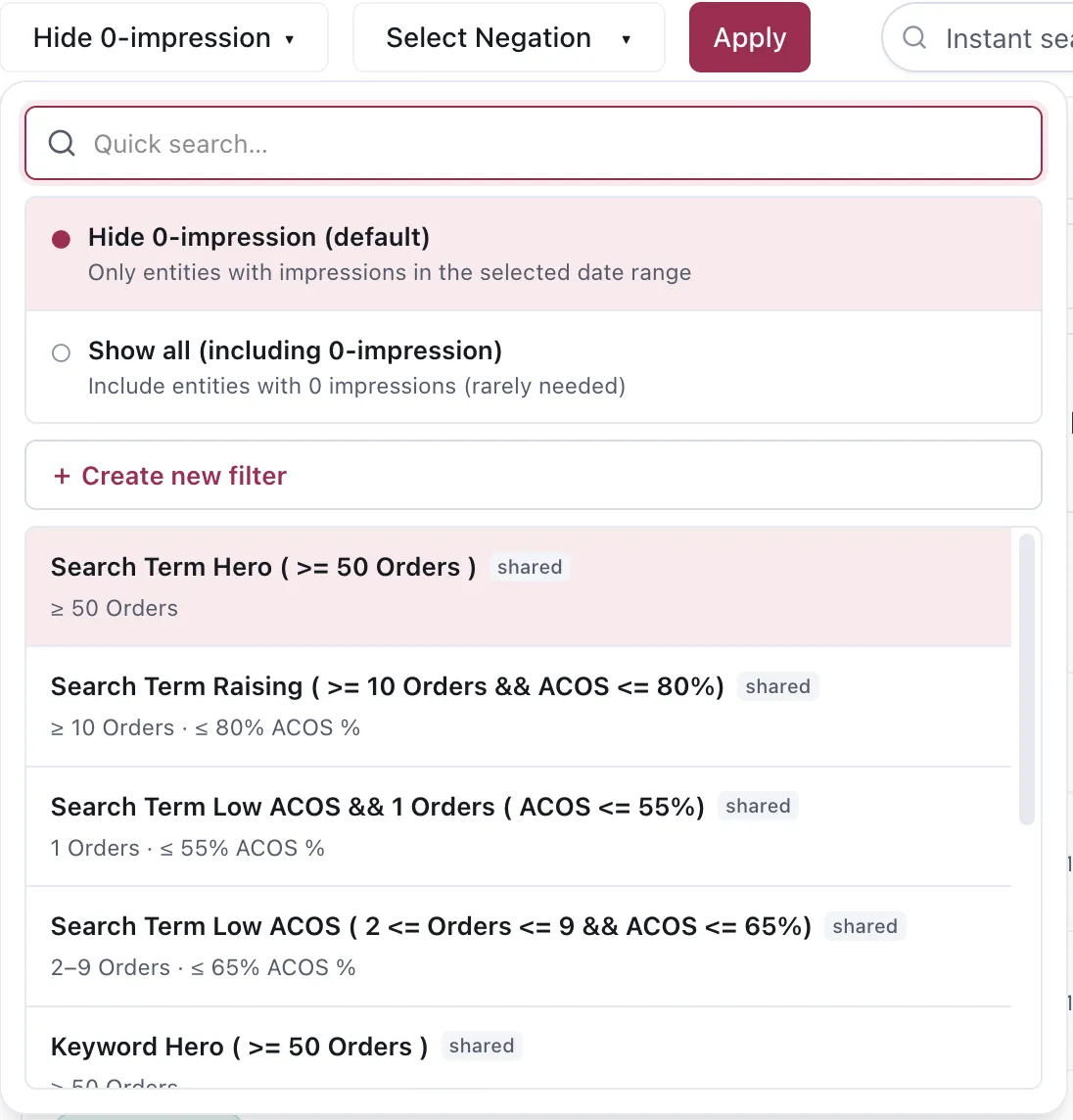
Saved filters carry their conditions in the name and in a summary line, and can be shared.
Rows with no impressions in the selected date range are hidden by default, and should usually stay hidden: an entity with no impressions has nothing to tell you. On Search terms the dropdown has no built-in Hide 0-impression option; a saved filter can include those rows by clearing Hide entities with no impressions in the selected date range.
Create new filter saves a set of conditions under a name. Because the name is yours, the useful
habit is to put the condition in it — a filter called Search Term Hero ( >= 50 Orders ) tells you
what it does without opening it, six months later.
On this tab a filter can set a minimum, a maximum or both on Impressions, Clicks, Orders, Sales, Spend, Cost per click, CTR, Conversion, ACOS and ROAS. A Units or Current bid condition is ignored here, because the table has no such column. A filter can also keep a Sort by and the columns you Track.
Shared filters are visible to the rest of the profile. A team reading the same account through the same definitions of “hero” and “raising” is a small thing that removes a lot of argument.
Filters worth having
Section titled “Filters worth having”The pattern that works is one filter per decision you actually make:
| Filter | Roughly |
|---|---|
| Hero | High orders — protect, and consider harvesting |
| Raising | Decent orders with acceptable ACOS — room to push |
| Low ACOS, few orders | Efficient but thin — watch, do not act yet |
| Losing | Spend with no orders — negation candidates |
The negation filter
Section titled “The negation filter”The other question this workspace answers is: is this term already blocked, and where?
The grouping matters, because a negative at campaign level behaves differently from one in a single ad group. A term you blocked in one ad group can still be running everywhere else in the campaign — which is exactly the case unnegation exists for.
Not negated is the inverse and just as useful: everything still running, so you can look at what is spending without a block on it.
Possibly blocked
Section titled “Possibly blocked”Possibly blocked is for a term with no active negative the App can find, but whose traffic loss looks suspicious. A search term qualifies when:
- it recorded at least 10 orders in this ad group in the last 180 days;
- its impressions in this ad group in the latest 14 days are zero or at least 90% below the preceding 14 days; and
- the same term still received impressions in the latest 14 days somewhere in the account, this ad group included.
The last condition helps separate a local block from a term whose demand has simply disappeared. If this ad group’s impressions fell rather than stopped, that count can include its own. The tooltip explains What happened, Why this looks blocked and What to check.
This filter does not return a term with a negative the App can identify. Those rows appear under the Ad Group and Campaign options; Fully blocked and Partially blocked are on Performance › Keywords. The signal is rebuilt by Daily Ads restatement after a complete fetch, scheduled for 07:00 Vietnam time, so it is not real-time and can be empty until the first nightly build after the feature is enabled.
Excluding a term from Automation
Section titled “Excluding a term from Automation”Select terms, then choose Exclude in the action bar. A search-term exclusion controls which negative action Automation must not take:
- All kinds
- Negative Exact only
- Negative Phrase only
The hold belongs to the selected ad group, not the whole seller account. Set it for 7, 14 or 30 days, choose a custom 1–365 days, or choose No end date.
The App saves the hold against the term’s close-variant family. Excluding hibiscus tea therefore
also excludes hibiscus teas. Saving another spelling replaces the existing hold for that family;
removing the exclusion removes it for the whole family.
Use the Excluded from Automation · N chip at the far right of the action bar to show only held rows. Automation previews and scheduled runs omit them. Dayparting, Agent proposals and your direct changes are not covered by this hold.
Reading a term before acting
Section titled “Reading a term before acting”Three questions, in order:
- Is there enough of it to mean anything? A term with four clicks has not told you anything yet, however bad those four clicks look.
- Which window am I reading? The same term reads differently over 14 days and 90. The date picker runs from Today to Last 12 Months, plus Lifetime — all the history the App holds — and Custom Range. See Evidence and periods.
- Whose evidence is this? A term thin on one ASIN may be dense across its Product Group.
Considerations
Section titled “Considerations”- Search term data lags. The most recent days understate orders because Amazon’s attribution is still arriving — the same reason Automation ignores them by default.
- A search term is not a keyword. Harvesting is what turns one into the other; see Harvest, negate and unnegate.
- Filters change what you see, not what exists. A term hidden by a filter is still spending.
VendlenPrivacy PolicyTerms of ServiceContact
© 2026 HELODA PTE. LTD. Not affiliated with or endorsed by Amazon.