

Inbound Pipeline
Open it from /inventory → Inbound Pipeline. The Inbound Pipeline is the finished-goods view of
stock between your manufacturer and an Amazon warehouse, with one column for each lot. For the full
shipment register — including AWD transfers and AWD → external (MCD) orders — use Shipments.
What a lot is
Section titled “What a lot is”The first columns are not lots: they are the channel’s current Sellable stock and, on Amazon, the shared AWD (pool). Every column after those is an individual lot — a purchase order, a shipment, or an AWD lot — carrying:
- a pickup date (ETD), and
- an estimated arrival (ETA).
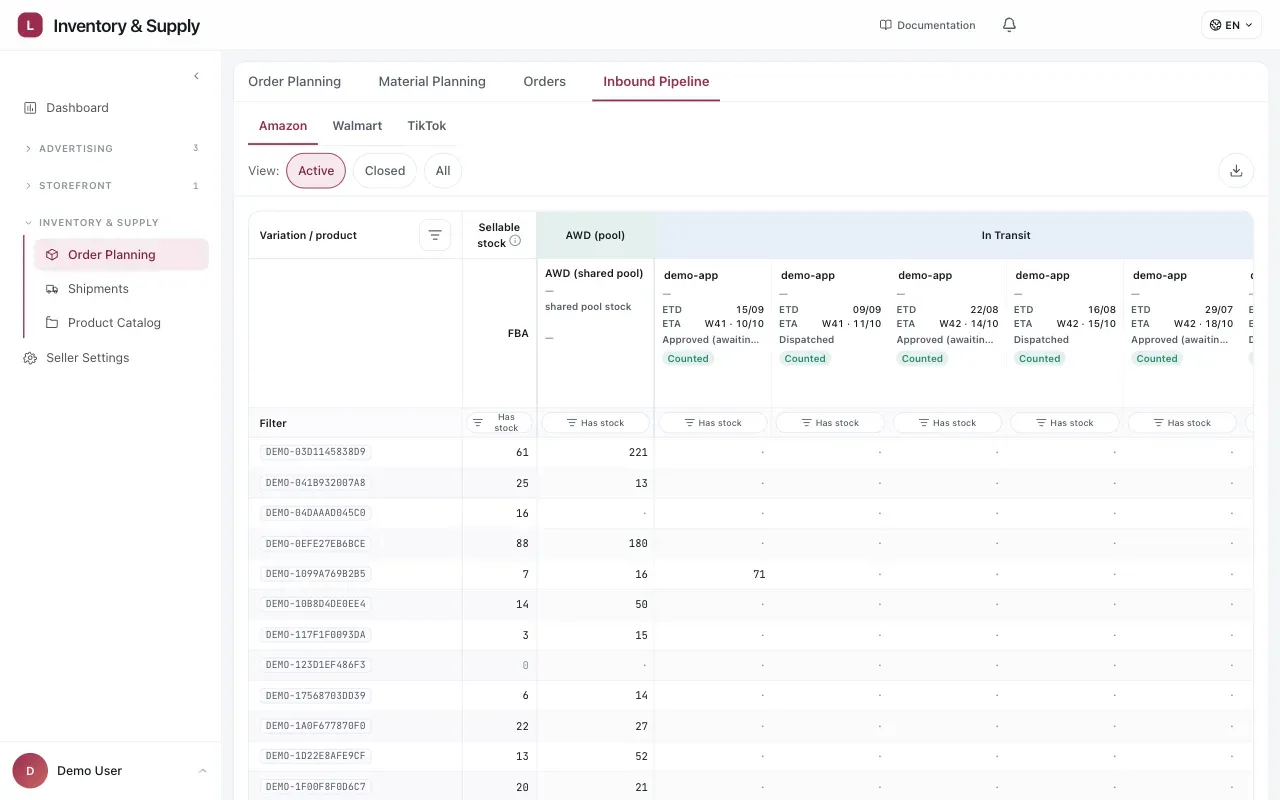
One column per lot, not one column for “inbound”. The Counted badge identifies shipments included in planning.
The lot columns are grouped by stage:
| Stage | What it holds |
|---|---|
| AWD (pool) | Stock already in the shared AWD pool. |
| Recently Arrived | Shipments that have arrived. History only: they are already in the destination’s stock and are not added again. |
| In Transit | App shipments that are approved, dispatched or in transit, and Amazon AWD shipments that are not matched yet. |
| Processed Stock | Goods the factory has produced that are not on a shipment yet. |
| In Production | Purchase orders that are still being produced. |
| Cancelled | Cancelled shipments, kept visible so you can review them. |
Reading a lot column
Section titled “Reading a lot column”The header carries the identifier, the dates, and the shipment’s status — for example Approved (awaiting dispatch), Dispatched or In transit. A separate badge answers one question: does the projection count this lot?
| Badge | What it means |
|---|---|
| Counted | Already added to the projection grid in its arrival week. |
| Not counted | An Amazon AWD shipment that is not matched to a lot in the App. Its quantities are shown for review but left out of the projection until you match it. |
| Already in stock | Arrived and already part of on-hand inventory, so it is not added a second time. |
| Cancelled | Cancelled, so it is left out of the projection. |
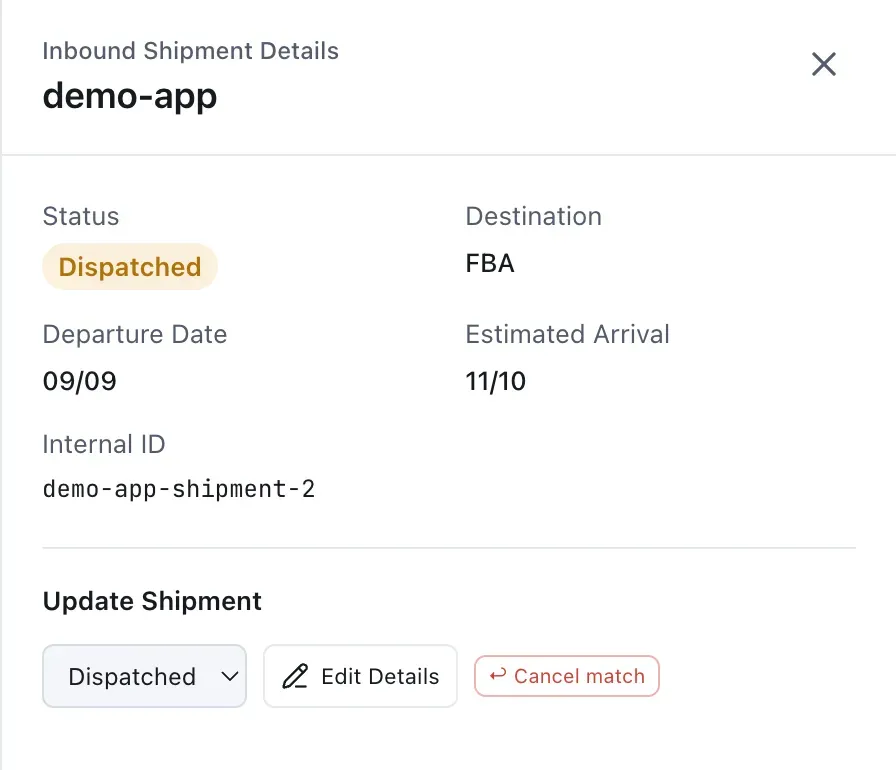
Open a lot to verify the dates and match that make it count in the projection.
The badge is about whether the projection counts the lot, not where the goods are. Amazon shipments sent directly to FBA never wait here for a match: the units they still expect to receive already count in FBA stock. Only Amazon shipments to AWD do, and the page tells you how many with “Amazon AWD shipments are not being tracked.” Until one is matched, the projection leaves it out, so the grid shows a shortage you may have already solved.
Match an AWD shipment
Section titled “Match an AWD shipment”Choose Match lot on a Not counted column. The App asks what the shipment corresponds to:
- A shipment plan — the plan that ordered these goods. Link to plan makes the quantity count once; the App quantity is the one that counts.
- A lot already in the App — select that lot and choose Link.
- Still being produced? — leave it unmatched. The purchase order already counts as incoming supply, so nothing is missing from the projection.
- Nothing yet — it predates the App — Add to inventory plan creates a standalone lot from the Amazon manifest so the quantity counts.
A lot created from the manifest reads Included in inventory plan, and Manage tracking reviews or unlinks it. A shipment linked to an existing plan or lot reads Linked.
The cells beneath are the boxes of each Sales SKU in that lot, so you can see which pack sizes it is carrying — which is what decides whether it relieves the row that is short.
A healthy AWD figure against a thin FBA one is a replenishment problem, not a supply one. The pipeline does not list MCD orders; those are maintained on the Shipments page.
How it connects to the projection
Section titled “How it connects to the projection”The estimated arrival is what puts the marked week in the stock projection. Open a projection cell that shows units arriving and you can follow it to the lot they came from.
That link is the point of holding the chain in one place. A number in the grid is always traceable to a shipment that exists, with a date somebody committed to.
Keeping it accurate
Section titled “Keeping it accurate”A lot that slips and is not updated makes every downstream week optimistic — the projection will show cover you do not have, and Order Planning will not raise a proposal you need.
When an arrival date moves, move it here. Everything downstream re-reads from it. Use the Shipments register to update or inspect marketplace tracking details such as AGL IDs and received-unit status.
Considerations
Section titled “Considerations”- Estimated arrival is an estimate. Treat the week it lands as approximate and keep the buffer doing the work it exists to do.
- A lot matched to the wrong shipment is worse than an unmatched one, because it looks correct.
VendlenPrivacy PolicyTerms of ServiceContact
© 2026 HELODA PTE. LTD. Not affiliated with or endorsed by Amazon.