

Automated ASINs
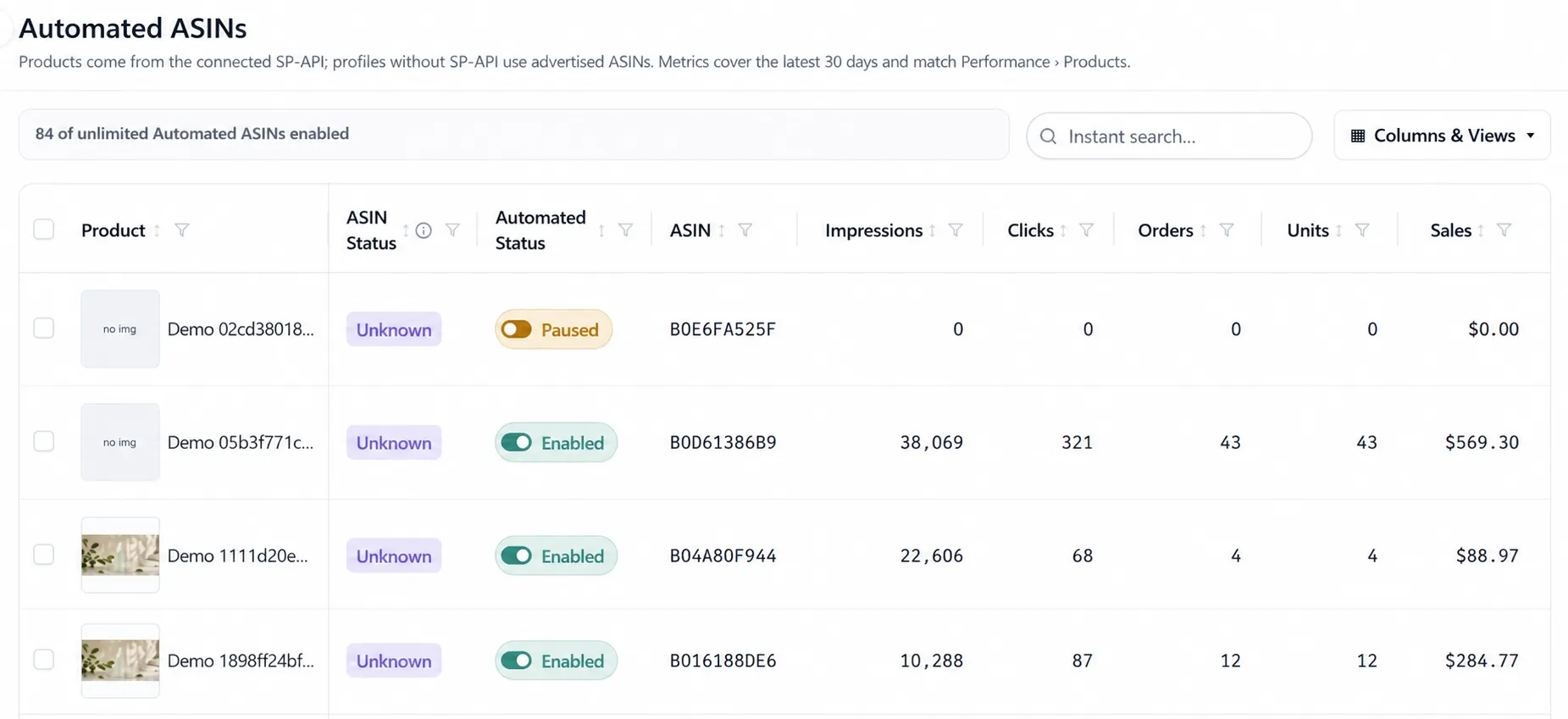
Automation only acts on products you have enabled. Automated ASINs is where you choose them, and it is also the meter your plan is measured against.
Enabling a product
Section titled “Enabling a product”Each product carries an Enabled / Disabled toggle. Disabled is not a pause on a rule — the product is simply outside Automation’s reach, and no rule assigned to it will act.
The header states how many you have enabled against what your plan allows, so the count is never a surprise at the moment you need one more.
Where the product list comes from
Section titled “Where the product list comes from”| Connection | What you see |
|---|---|
| SP-API connected | Products from your catalog |
| No SP-API | Only the ASINs you are actually advertising |
That difference matters when you are setting up. A seller who has connected Amazon Ads but not SP-API sees a shorter list — not because products are missing, but because the connection that knows about the catalog is not there yet. See Connect your Amazon account.
Reading the table
Section titled “Reading the table”Each row carries the last 30 days of performance: impressions, clicks, orders, units, sales, conversion rate, spend, CPC, CTR, ACOS and ROAS. These are the same figures as the Products view in Performance, so the two do not disagree.
Columns and views are configurable, and instant search filters the list.
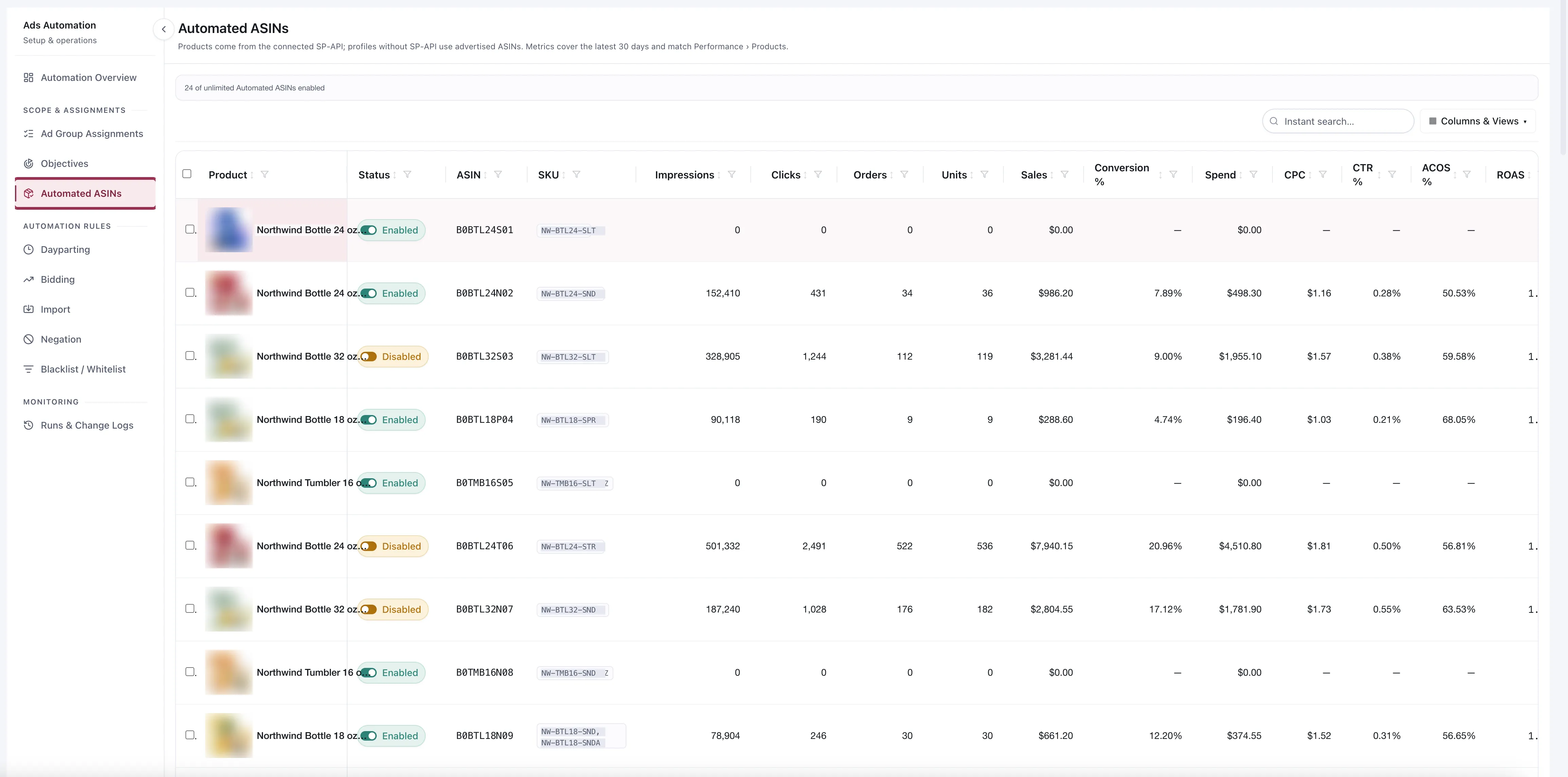
The rows carrying zeros are the ones worth noticing: a product with no impressions gives most rules nothing to read.
What to look at before enabling
Section titled “What to look at before enabling”A product with no impressions gives most rules no data to evaluate. Enabling it uses one Automated ASIN slot, and most rules will not act until it begins receiving impressions. The exception is a Bidding rule that raises the bid by a fixed amount and whose Criteria cap Impressions, such as the Explore rule in Starter Rules: it also reads targets with no traffic, and can raise their bids. A Momentum Guard rule reads them too, but only acts on a target with a proven baseline. See How a rule evaluates data.
A product with substantial spend and no orders presents a different case. These are the situations where Automation can respond most directly.
Check the rule’s own numbers, not the product’s. A Bidding rule takes its Target ACOS and its bid limits from the rule itself. The Break-even ACOS, Target ACOS and Max bid under Product Lines are for the AI Analyst, and no rule reads them. See How the economics resolve.
Choosing what to automate
Section titled “Choosing what to automate”You will usually have more products than the plan allows, so this is a real decision.
Spend first, not sales. Automate where the money is moving, whether or not it is working. A product spending $2,000 a month is where a rule pays for itself; a product spending $40 is not.
Products with enough traffic to settle a question. Rules need evidence. A long-tail ASIN with four clicks a week will spend most of its time being skipped for thin data.
Leave launches manual at first. A new product has no history, so most triggers cannot fire on it, and the ones that can are reading a very short record.
Considerations
Section titled “Considerations”- Disabling a product does not undo changes rules already made. Those are in Change History.
- The count is products enabled, not rules or ad groups. One product under twelve rules is one Automated ASIN.
- A disabled product is still visible in Ads Manager and can still be worked on by hand.
VendlenPrivacy PolicyTerms of ServiceContact
© 2026 HELODA PTE. LTD. Not affiliated with or endorsed by Amazon.